Step-by-step setup for automatic transaction logging from your bank's notifications.
Set up the email automation
Open the Shortcuts app.
Switch to the Automation tab, tap New Automation, then choose Email.
Configure the trigger so only real alerts fire it:
Sender — your bank’s alert address (for example ibanking.alert@dbs.com).
Subject Contains — a phrase every alert shares, like Card Transaction Alert, so promos never trigger it.
Select Run Immediately so transactions log without a confirmation tap.
Tap Next.
Tap Create New Shortcut to open the shortcut editor.
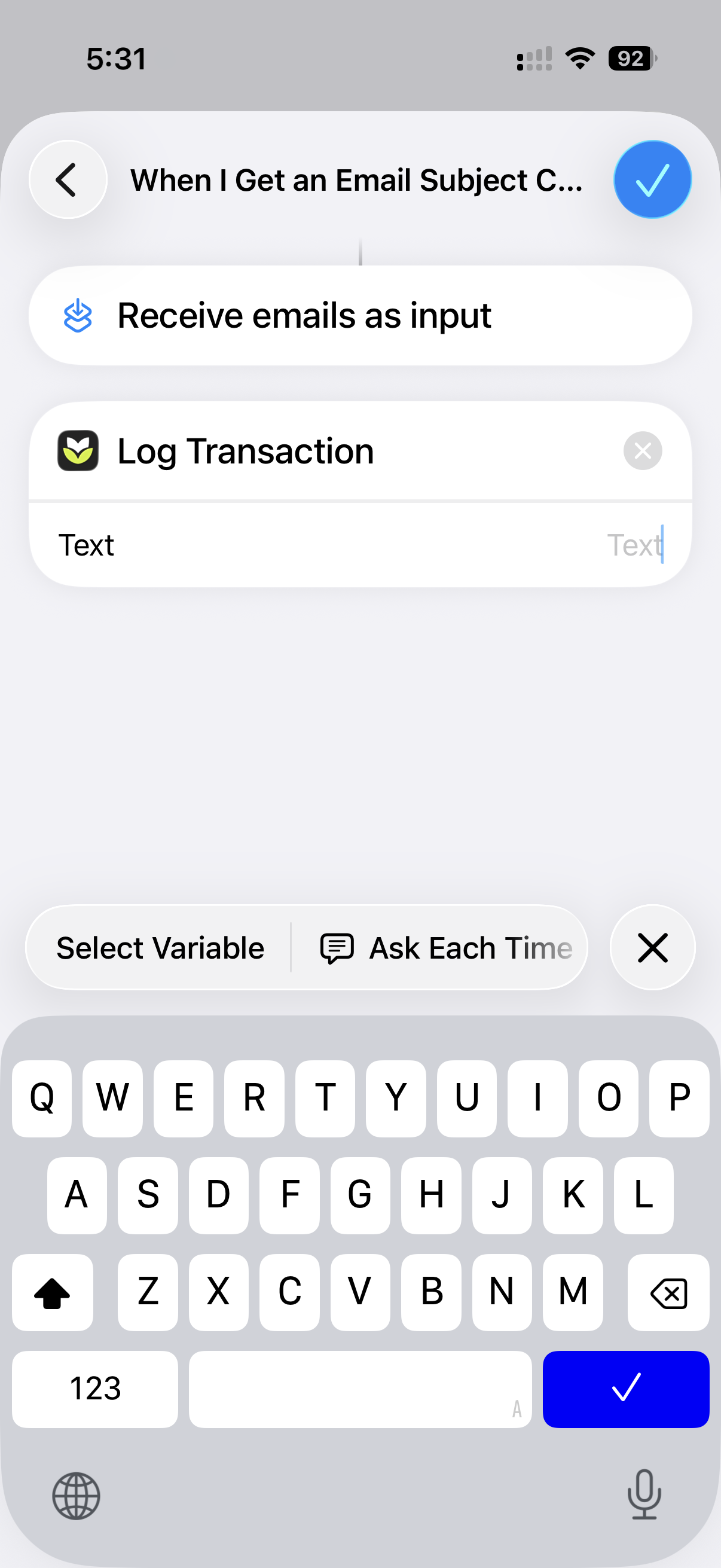
Search for the Monivera app and add its Log Transaction action.
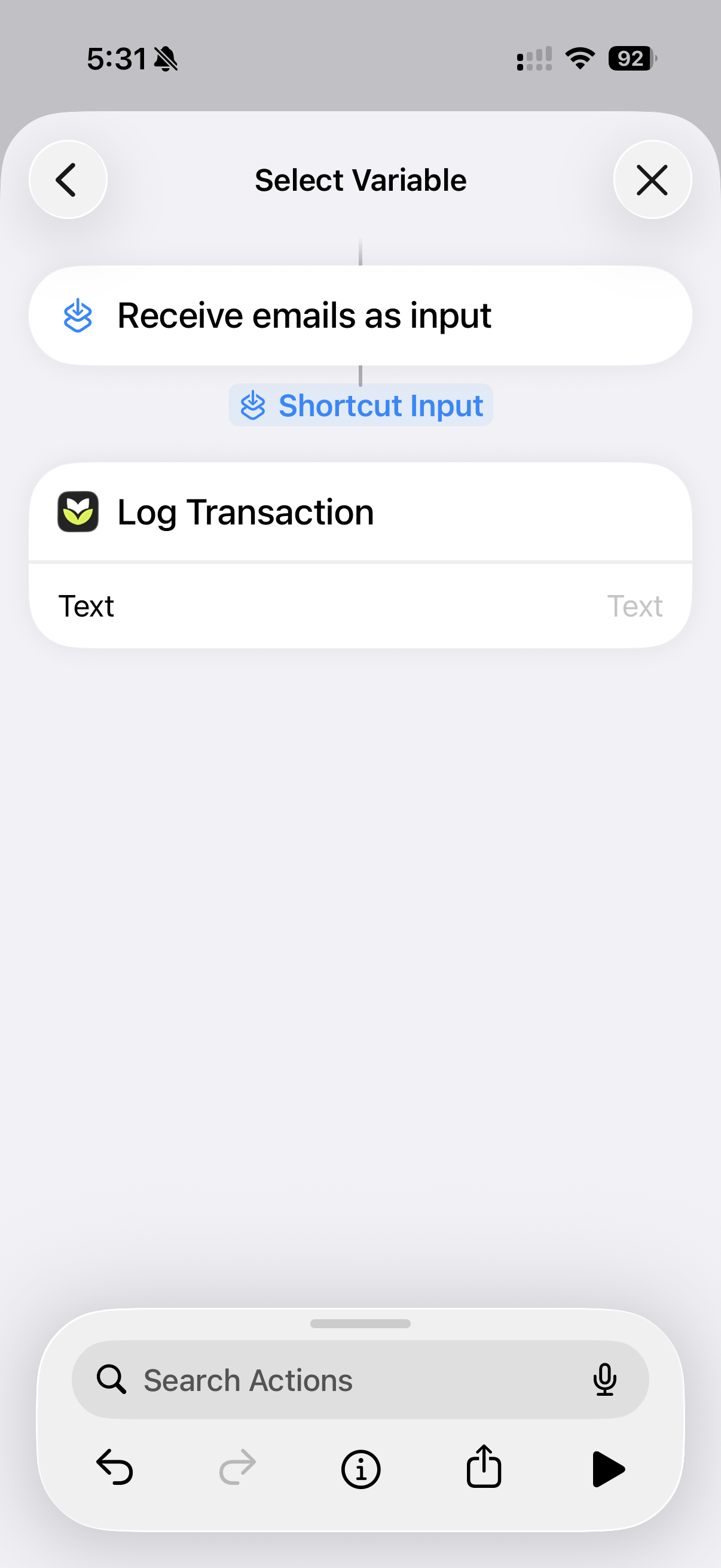
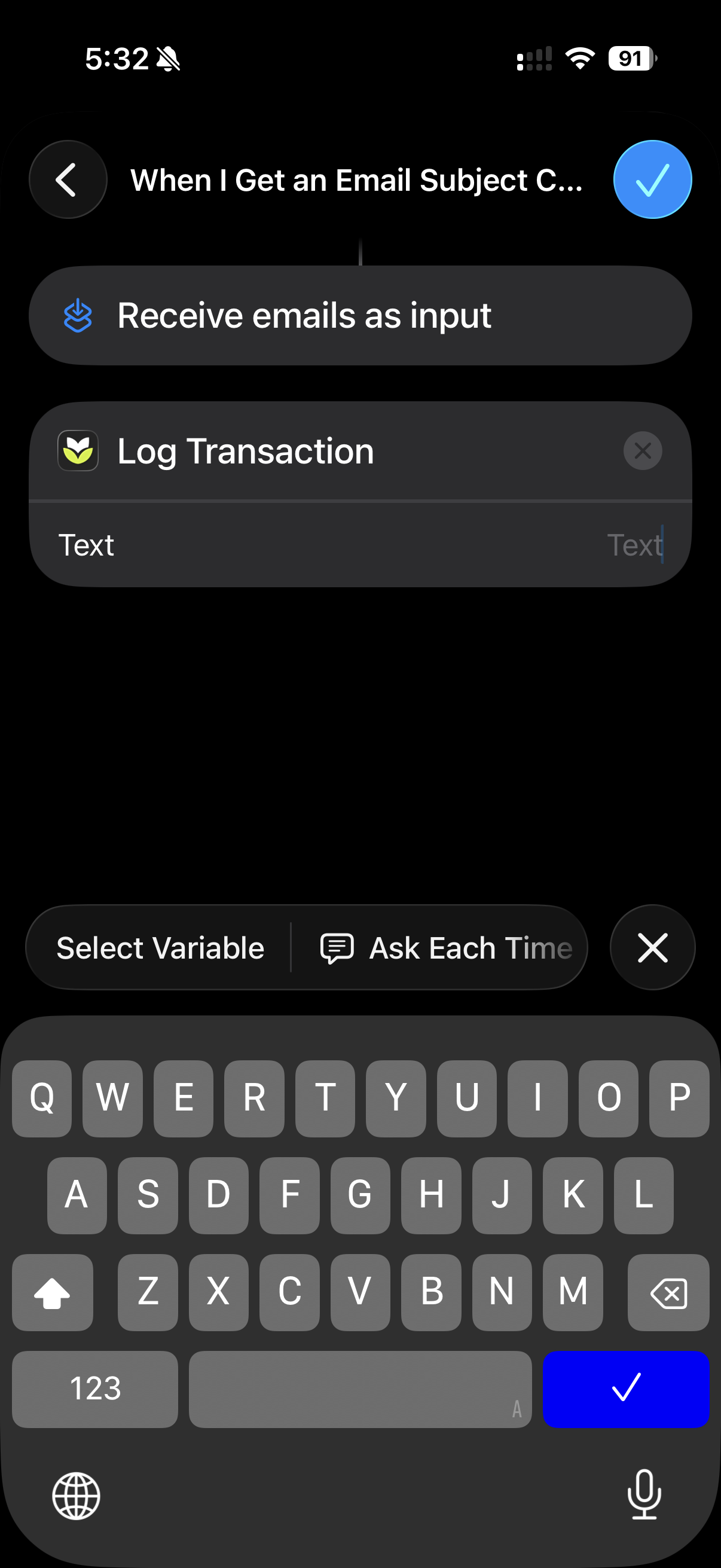
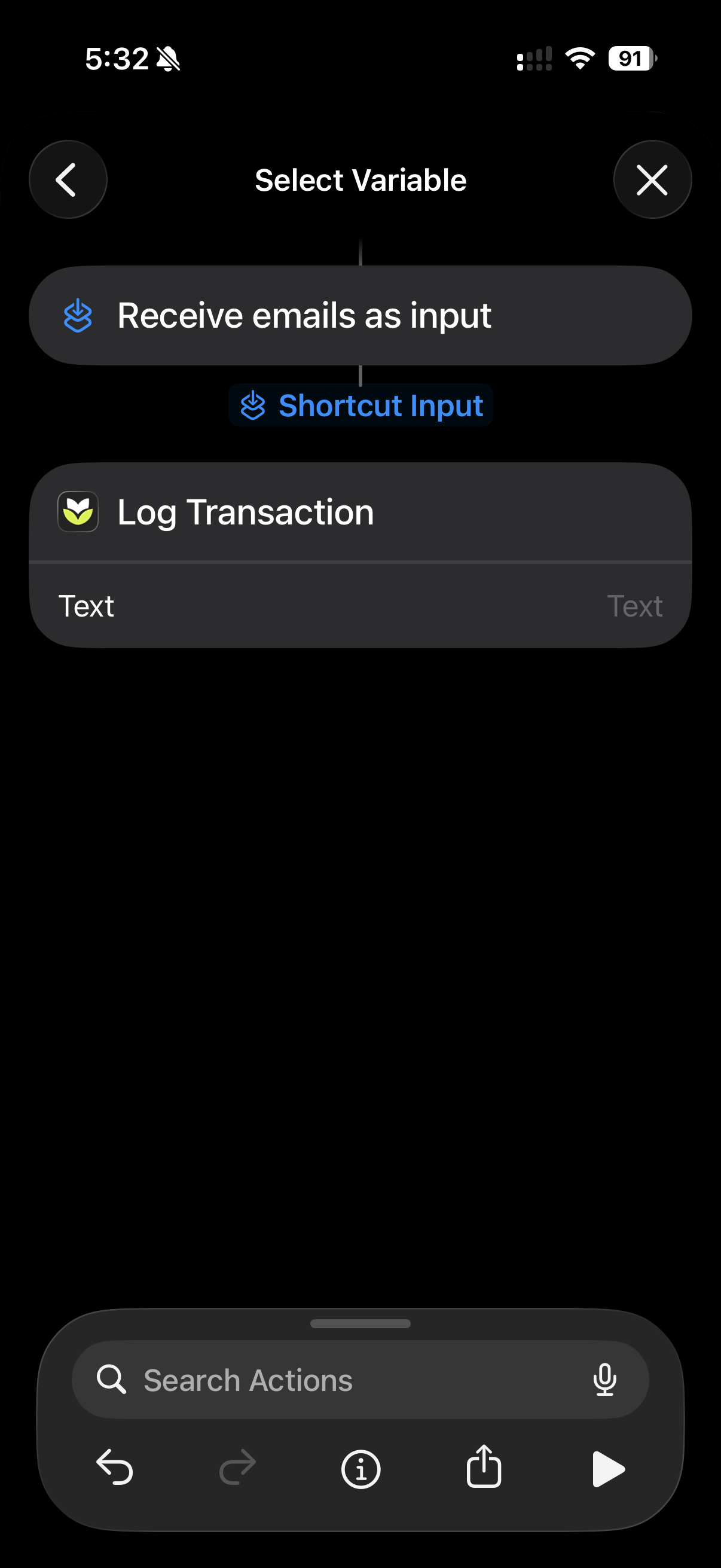
Tap the action’s Text field, then Select Variable above the keyboard.
Choose Shortcut Input — it’s listed under the “Receive emails as input” step.
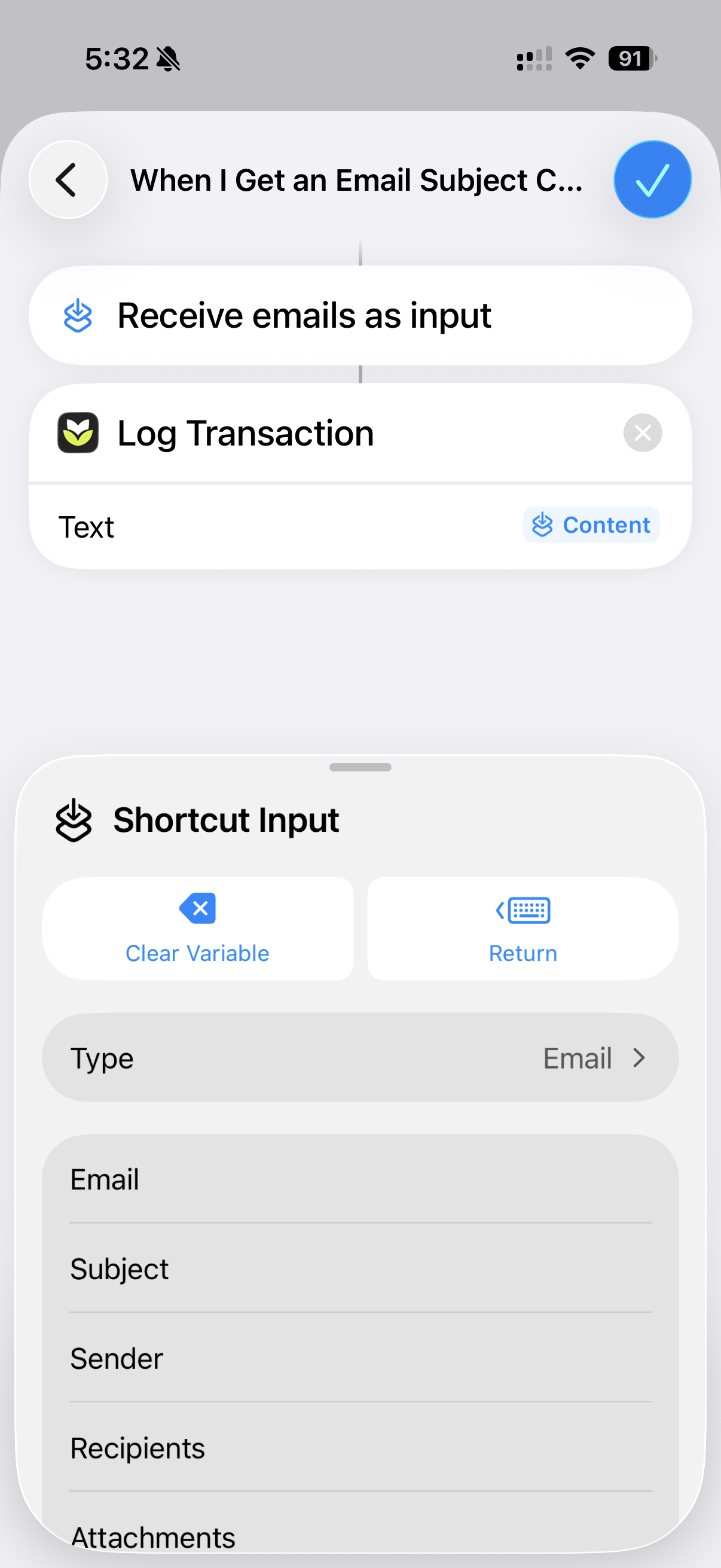
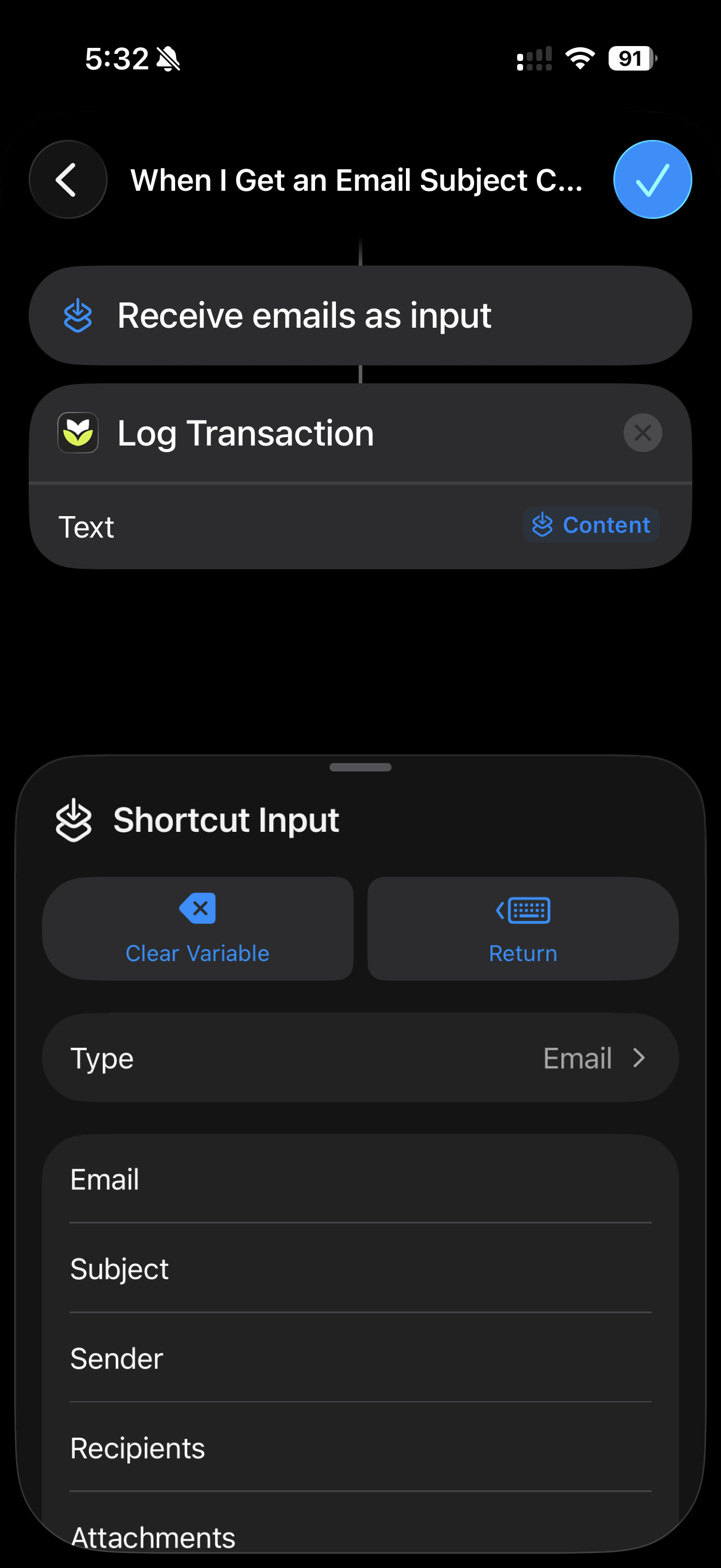
Tap the Shortcut Input token, then tap it again when it appears on the text input.
Select Content from the bar at the bottom.
Tap the ✓ to save the automation.
That’s it. Every email matching your filter now logs itself — parsed, categorized, and added to your ledger automatically.
Privacy note: parsing uses a third-party AI service, and only the text you forward is ever sent — you consent to this on the screen shown at your first sign-in, before anything can leave your device. Keep your automation filters tight so you only forward bank alerts, not messages containing sensitive personal information. See the privacy policy for details.
Bank texts instead of emails? Use the Message trigger in step 2 the same way, filtering by your bank’s sender ID.
Tips
Turn on your bank’s alerts first — Monivera only reacts to notifications your bank actually sends. Check your banking app’s settings and make sure email or SMS transaction alerts are switched on before setting up the automation above.
Pick one source per account — trigger on your bank or card issuer, not the vendors it pays. Integrating both means a food-delivery charge could get logged twice: once from the bank, once from the delivery app.
Filter by sender and subject — transaction alerts have predictable phrasing (“charged”, “debited”, “payment of”); promos don’t. Matching on both keeps marketing emails out of your ledger.
Multiple transactions in one alert? Monivera detects each one and logs it separately — no extra setup needed.
Failed parses land in Needs Review — these transactions will be flagged for your review. Manually edit them in the app.
Troubleshooting
The automation never runs — check that it’s set to Run Immediately (not “Run After Confirmation”), and that the Sender and Subject Contains filters actually match your bank’s alert emails.