Every control on Home and the Ledger, covering widgets, logging, input options, list vs calendar, and the summary card.
The dock at the bottom has three buttons: Home, + (log a transaction), and Ledger.
Home
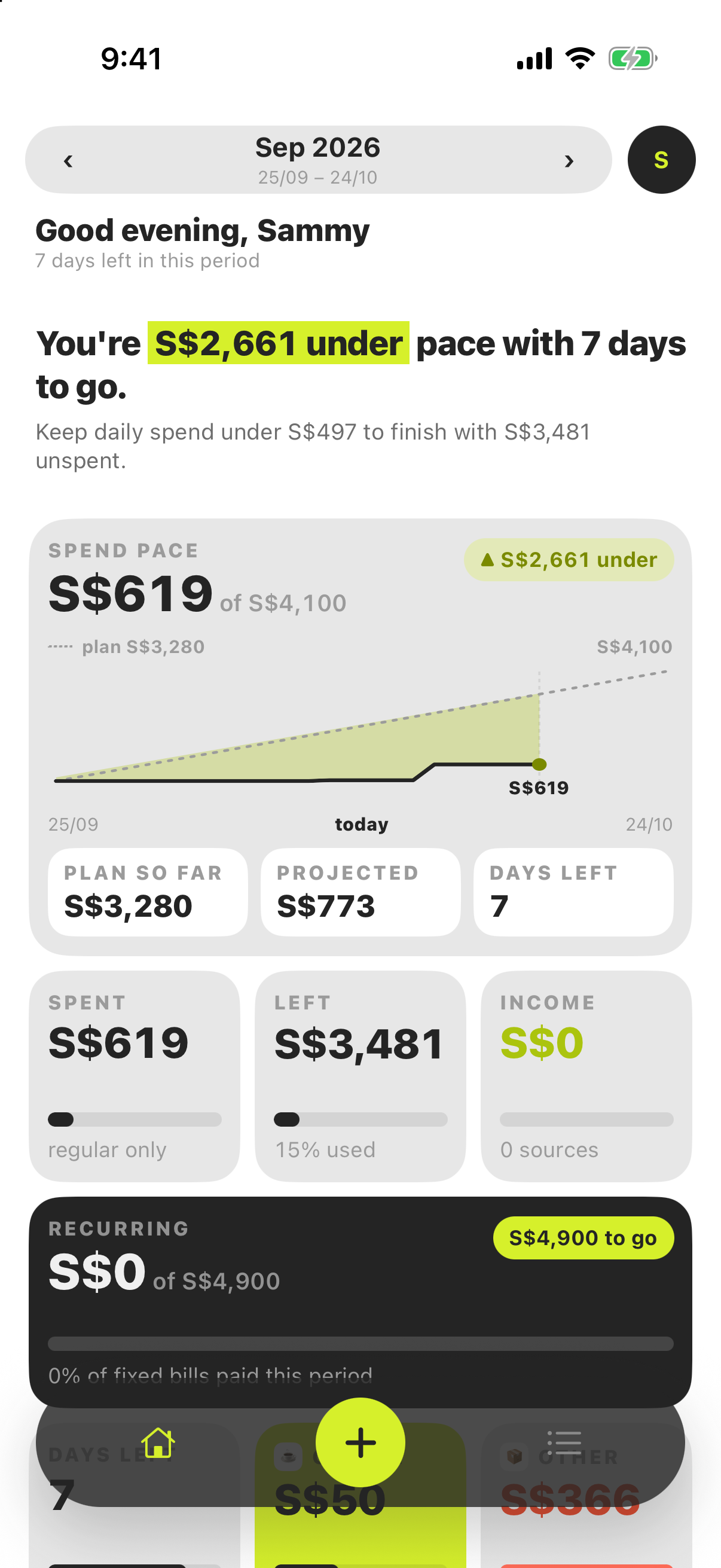
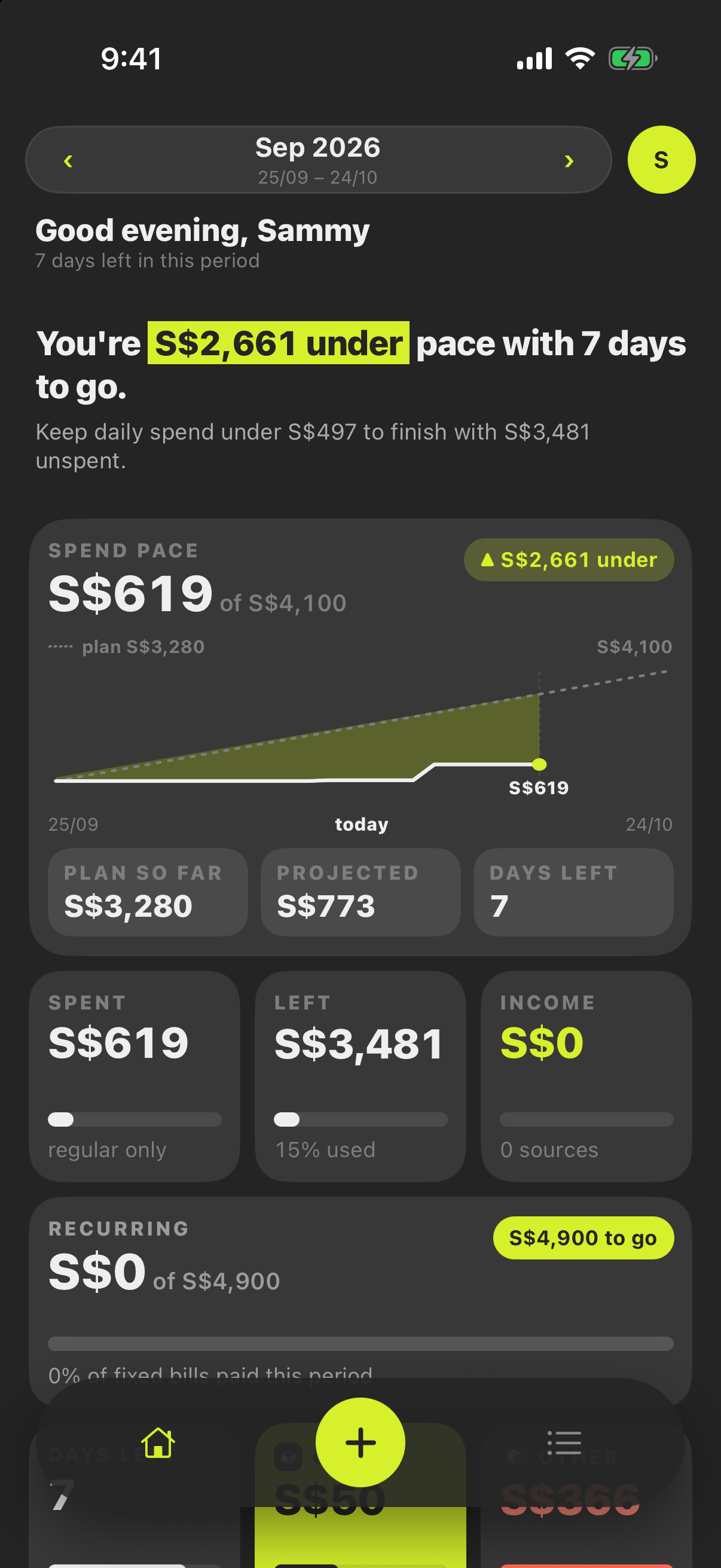
Home is a summary of your period made of widgets: what’s safe to spend, a budget ring, cash flow, daily spend, top categories, recent transactions, and more. Every widget is a shortcut: tap it to open the budget view, a category, a day’s transactions, or the Ledger.
Edit: long-press any widget. Drag widgets to reorder them, tap the minus badge to remove one, and tap Done to save.
+ Add: in edit mode, add a single widget from the widget bank, or pick a template (a ready-made layout such as Pulse or Headline). A template replaces your current layout after you confirm, and you can then rearrange it like any other.
Widget settings: in edit mode, tap a widget that has settings to change what it shows. The Categories card can list your most used categories, your least used, or a set you pick yourself, ranked by spend or by share of budget used, at 2×2 or 2×3. The Category tile is a small tile that follows one category of your choice: what’s left (or how far over), with its bar.
Your layout is saved to your account and follows you to your other phones.
The Ledger at a glance
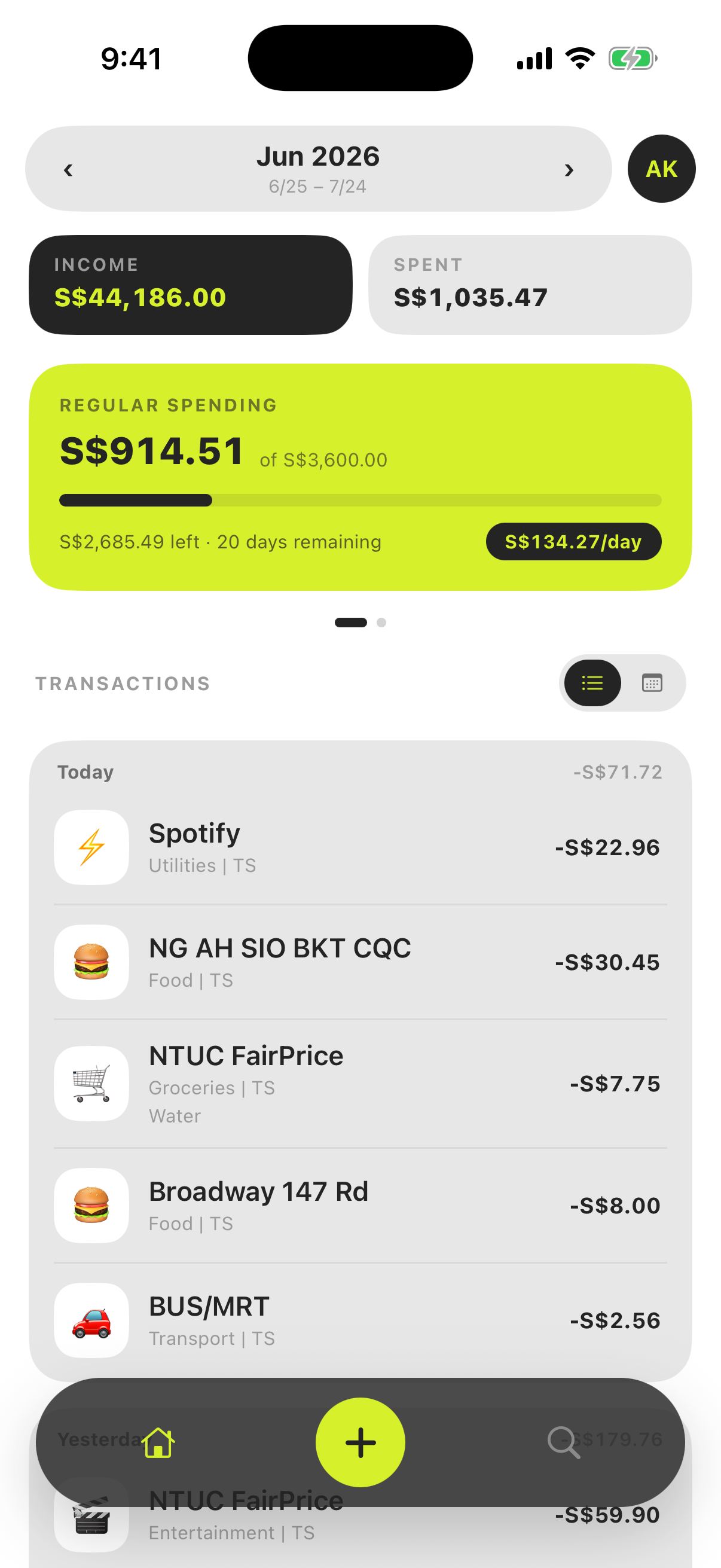
The Ledger tab holds the period’s transactions and summary. The magnifier in its header opens search.
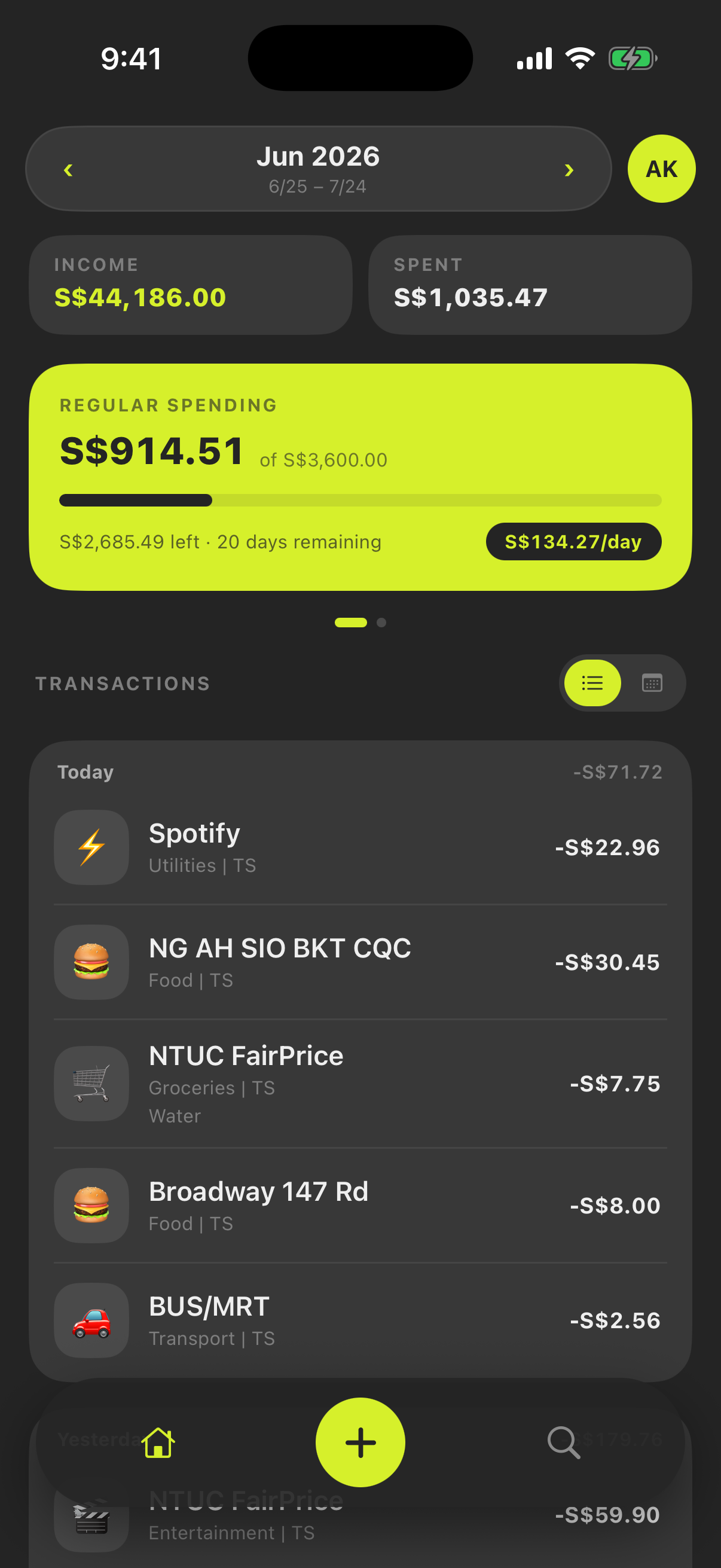
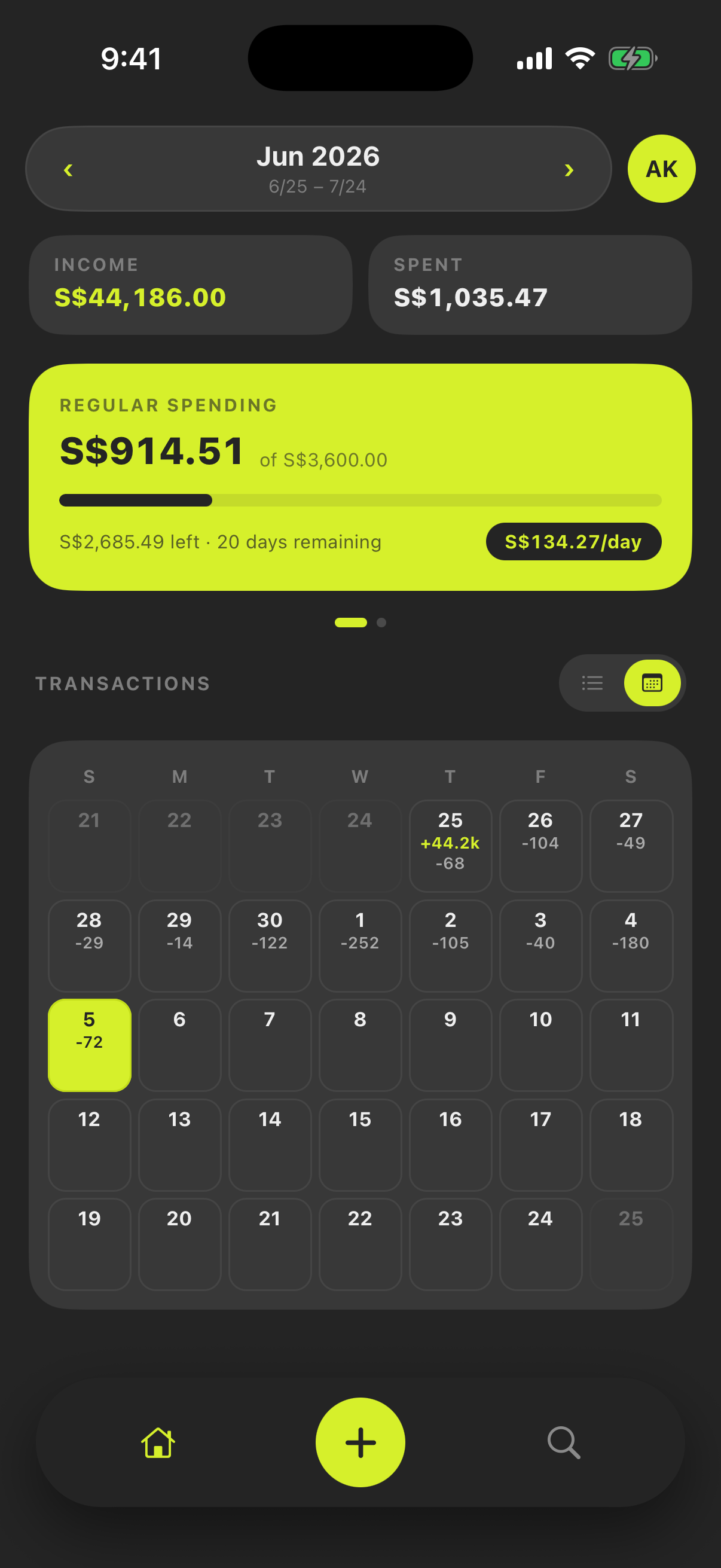
Period banner — shows the current budget cycle; use the chevrons to step between periods or tap the month to jump straight to one.
Income / Expense summary — live totals for the period. Tap either chip to open the budget view: Income jumps to its income breakdown, Spent to its spending breakdown.
Summary card — your hero card: how much you’ve spent of the regular envelope, the progress bar, days remaining, and the suggested daily spend. Swipe it sideways to flip between the Regular and Recurring envelopes; tap it to open the full budget view.
Needs Review — transactions that failed to be parsed are flagged for review. Tap it to assign a category and move it into the ledger.
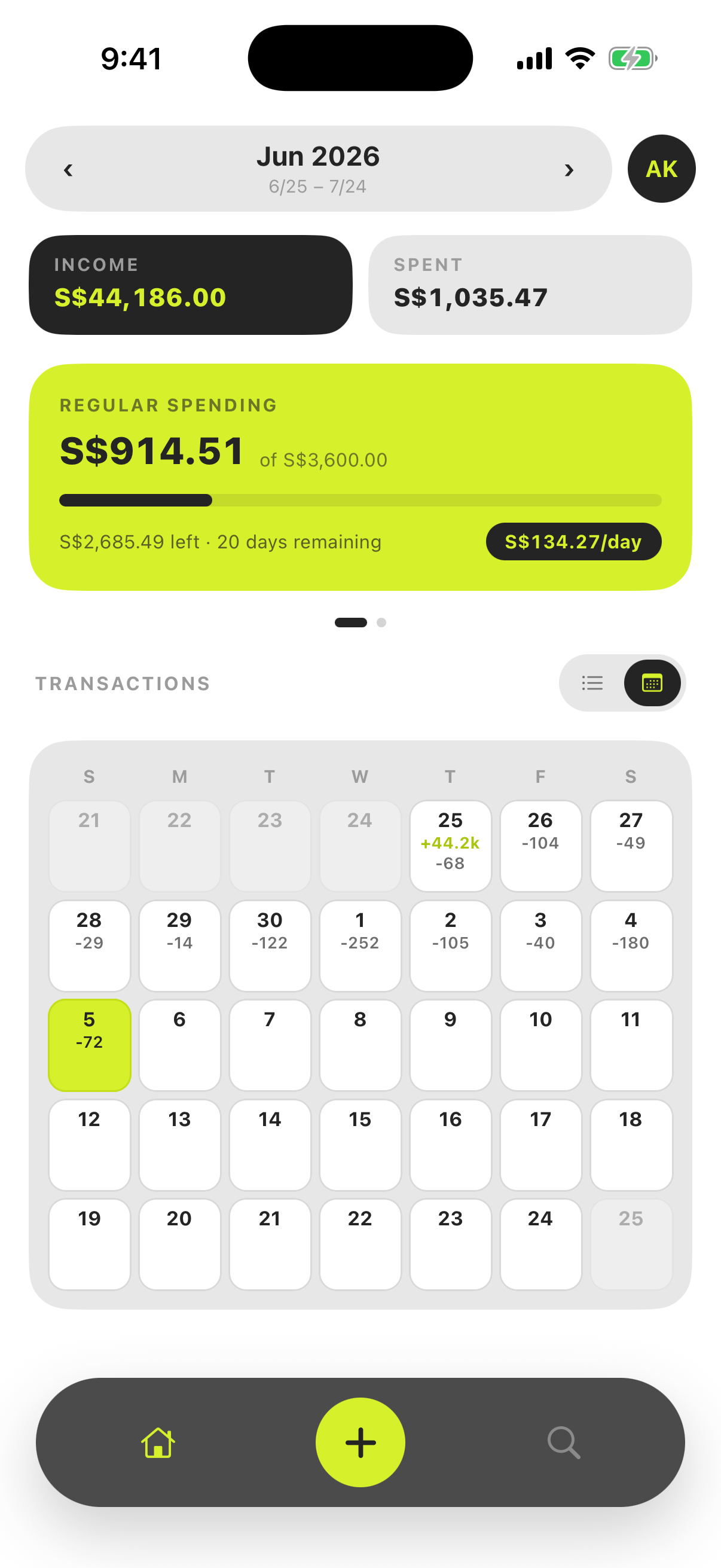
Transaction ledger — all transactions for the period, toggled at the top between List (grouped by day, newest first — best for reviewing and editing) and Calendar (a month grid with daily totals — best for spotting patterns, tap a day to see its transactions). Tap a row to edit, swipe left to delete.
+ button — opens the add-transaction sheet.
Logging manually
Tap + and fill in the fields. Here’s what each input means:
Input
What it does
Expense / Income / Transfer
The transaction type. Expenses count against your budget; income adds to your totals; transfers move money between your own accounts and are excluded from both — so shuffling savings around never skews your numbers.
Amount
What was spent or received.
Merchant
Who you paid (or who paid you).
Category
Where it counts — picked from your own category list via the bottom-sheet grid.
Recurring toggle
Marks a fixed bill. It counts against your recurring envelope instead of everyday spending, keeping your regular numbers honest.
Card / Cash
Payment method, for your own tracking.
Tags
Freeform #tags for cross-category tracking — see Tips & tricks.
Note & Date
Optional context, and when it happened.
Editing and deleting
Edit — tap any transaction in the ledger, change what you need, tap Update Transaction.
Delete — swipe left on a row and confirm. This can’t be undone, which is exactly why there’s a confirmation.