Tips & tricks
Tag workflows, pay-day budgets, and other habits that make Monivera quietly excellent.
Track anything with custom tags
Categories answer “what kind of spending is this?” Tags answer everything else.
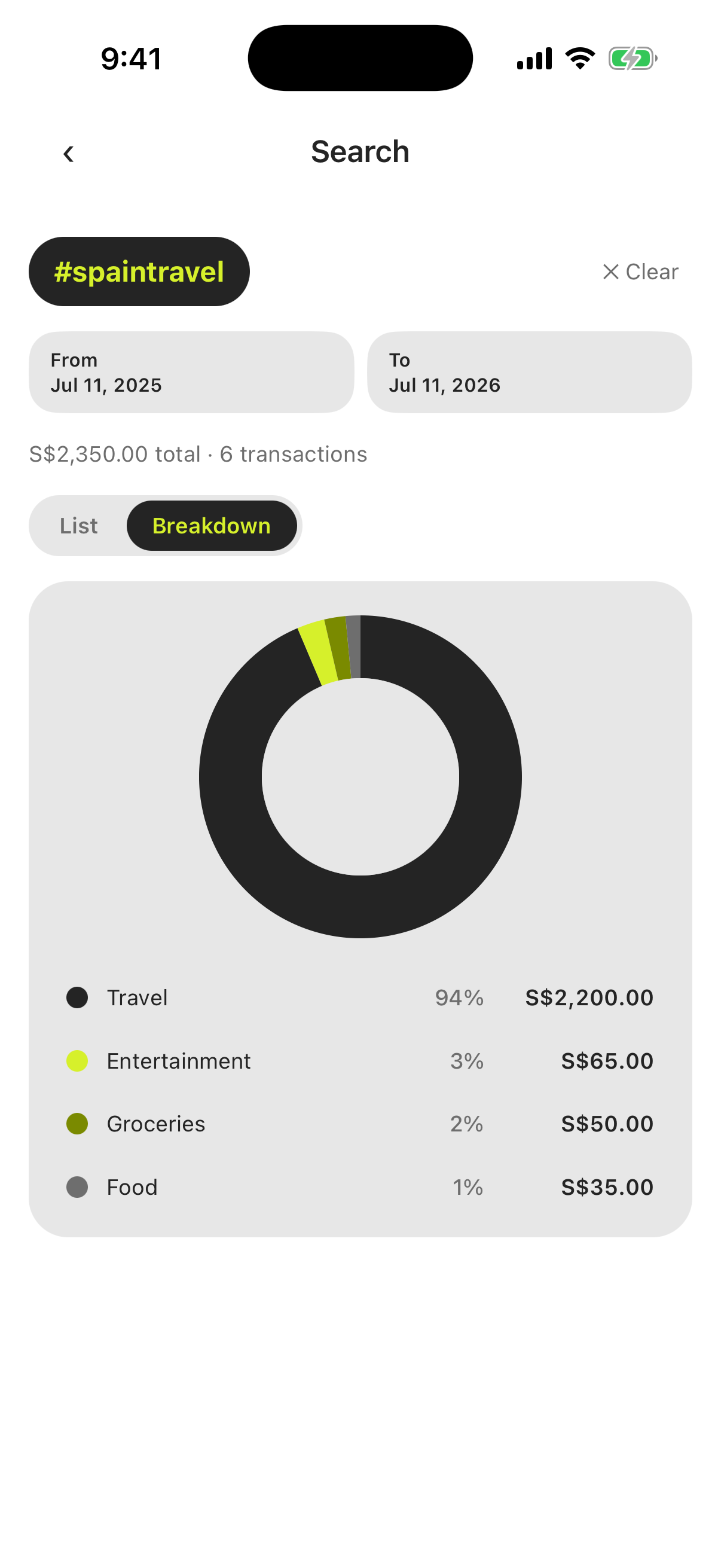
The killer workflow: tag an event or project across all its categories. Going to Spain? Tag every related transaction #spaintravel — the flights (Transport), the tapas (Food), the museum tickets (Fun), the questionable souvenir (no category can save you). After the trip, search for #spaintravel and see exactly what the whole thing cost, broken down by category.
The same trick works for anything that cuts across categories: a home renovation, a wedding, a “new apartment” burst, a visiting relative.
Set your budget start day to your pay day
Instead of resetting on the 1st, set the budget start day (Settings → Budget Settings → Budget resets on) to when your salary arrives. Your budget period always starts full and ends right before the next deposit — no mid-cycle weirdness.
Use the recurring toggle for fixed bills
Mark rent, subscriptions, and utilities as Recurring when logging them. They count against the recurring envelope, so your everyday spending numbers stay honest.
Let the AI do the logging
Transactions sent through the integration are parsed, categorized from your own list, and logged automatically — no confirmation needed. If one ever lands in the wrong category, tap it in the ledger and change it.
Pull to refresh
Pull down on the dashboard ledger to force a sync — handy right after logging on another device or via the shortcut.