Get started
What Monivera is, how to set it up, and your first logged transaction — in about five minutes.
What is Monivera?
Monivera is a budgeting app built around one idea: logging should be automatic. Your bank already notifies you about every purchase — Monivera turns those email and SMS alerts into a live, categorized budget. You get one clear view of all your spending, a budget you share with your household, and a daily number that tells you what you can spend today.
This page walks you through setup. Once you’re running, dig deeper with:
- Email & SMS integration — make logging automatic (the good stuff)
- Settings — budgets, categories, and household options
- Main view manual — every control on the dashboard, explained
- Budget view — reading your budgets and leftover spend
- Search — find anything by keyword or tag
- Tips & tricks — tag workflows and other power moves
1. Install and sign up
Monivera is available on iOS — search for Monivera in the App Store. Open the app, tap Sign up, and enter your email and a password — or tap Continue with Google or Continue with Apple to use an existing account. You’re in immediately.
2. Pick your basics
On first launch, onboarding asks for two things:
- Base currency — the currency your budgets and totals display in.
- Budget start day — the day of the month your budget resets. The 1st is the classic choice; your pay day is the smart one.
3. Set your budget
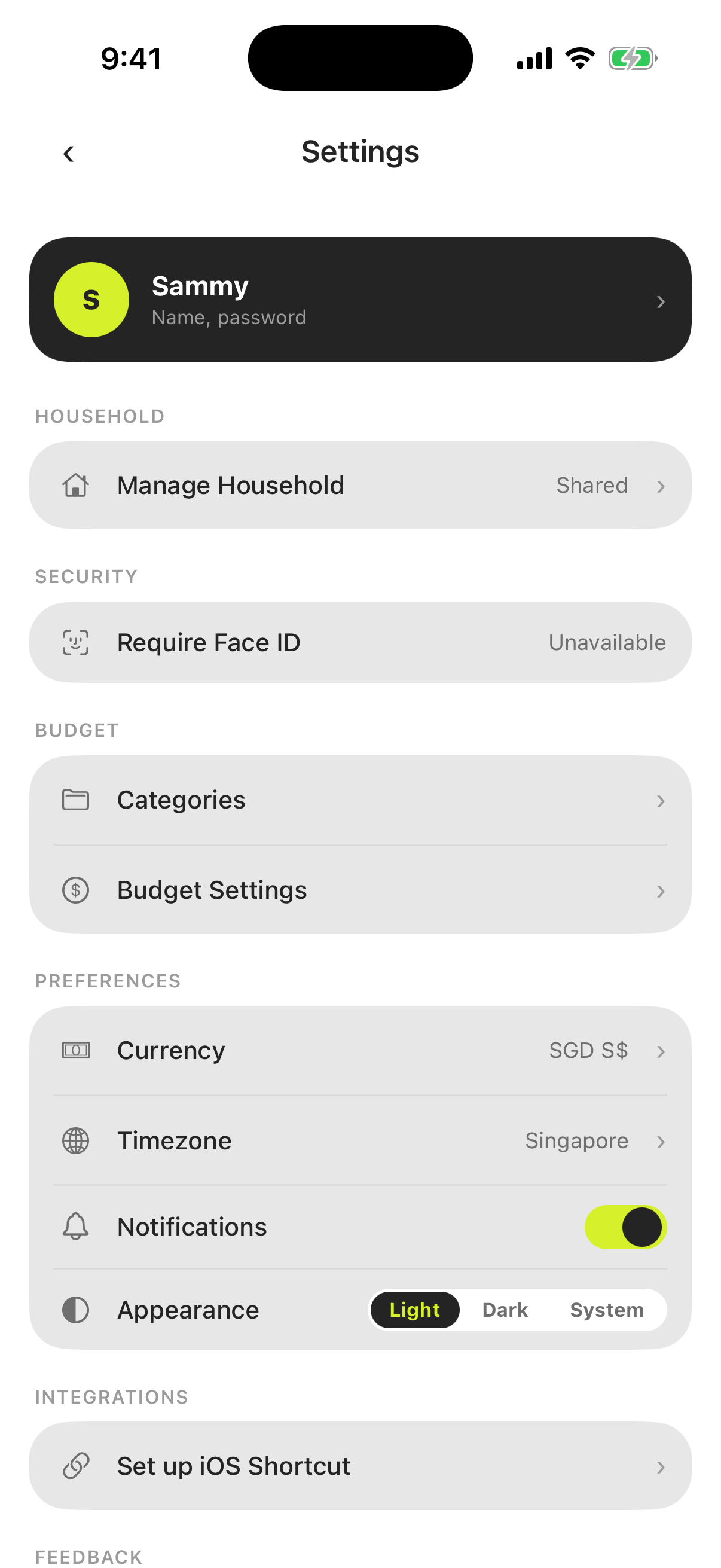
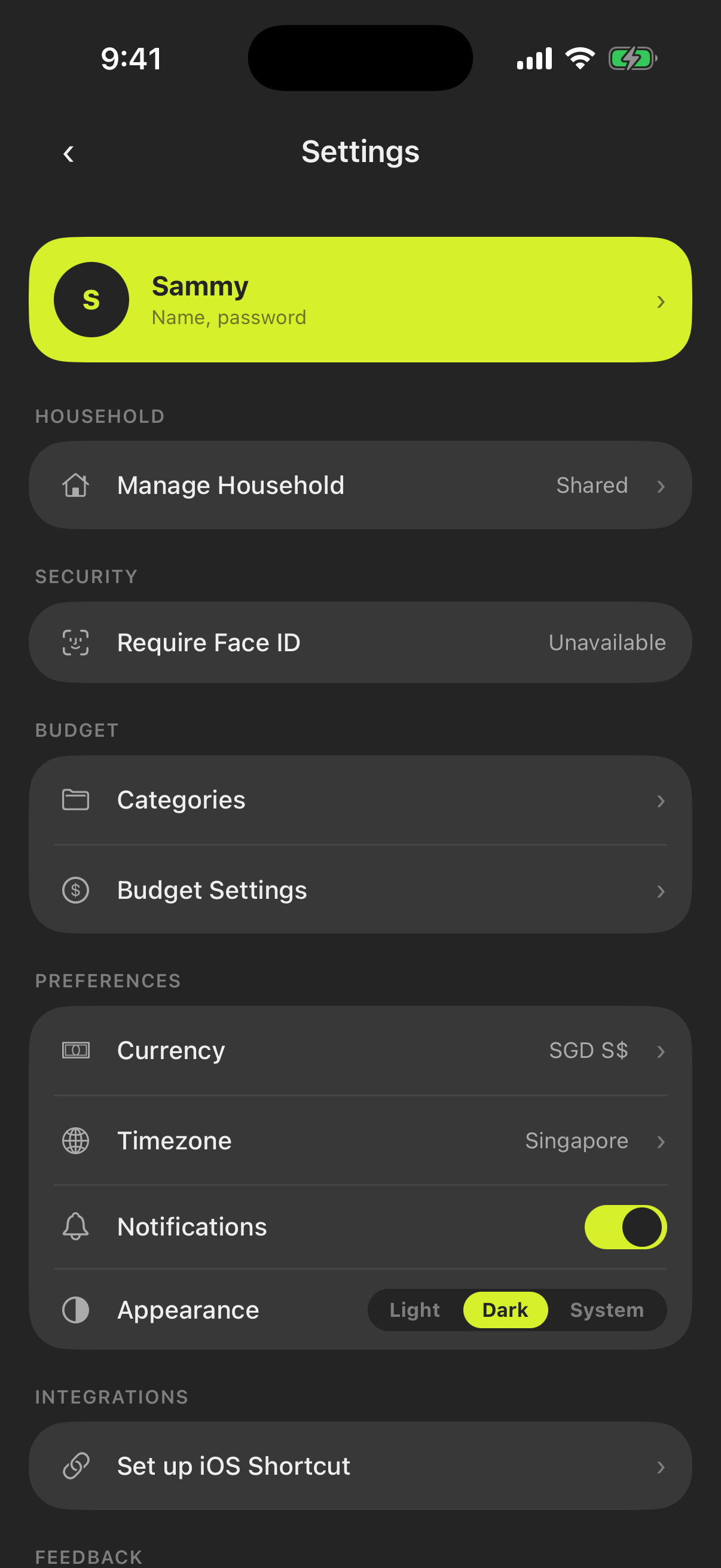
Go to Settings → Budget Settings and enter a total monthly amount. Optionally add a recurring sub-budget for fixed bills (rent, subscriptions, utilities) and allocate amounts per category. Full details in Settings.
4. Log your first transaction
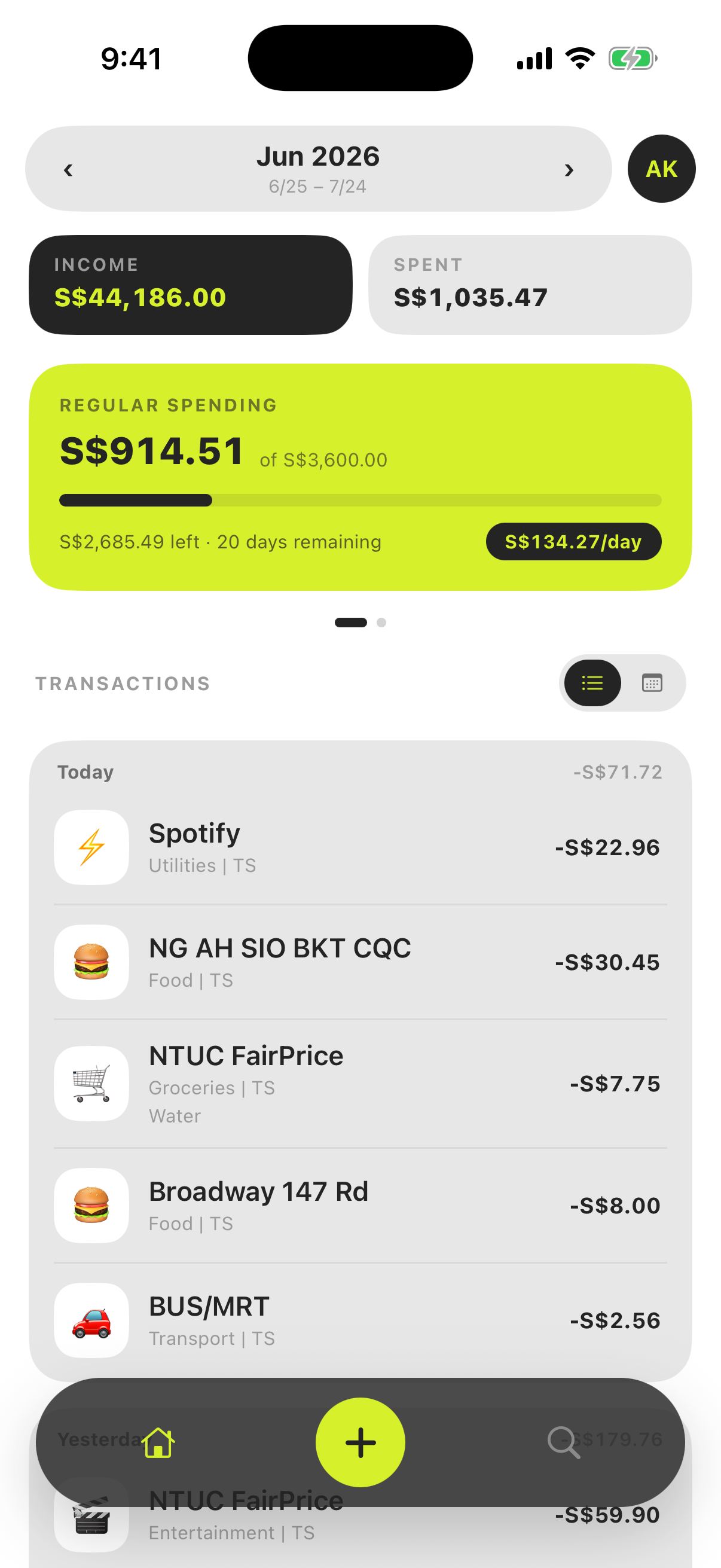
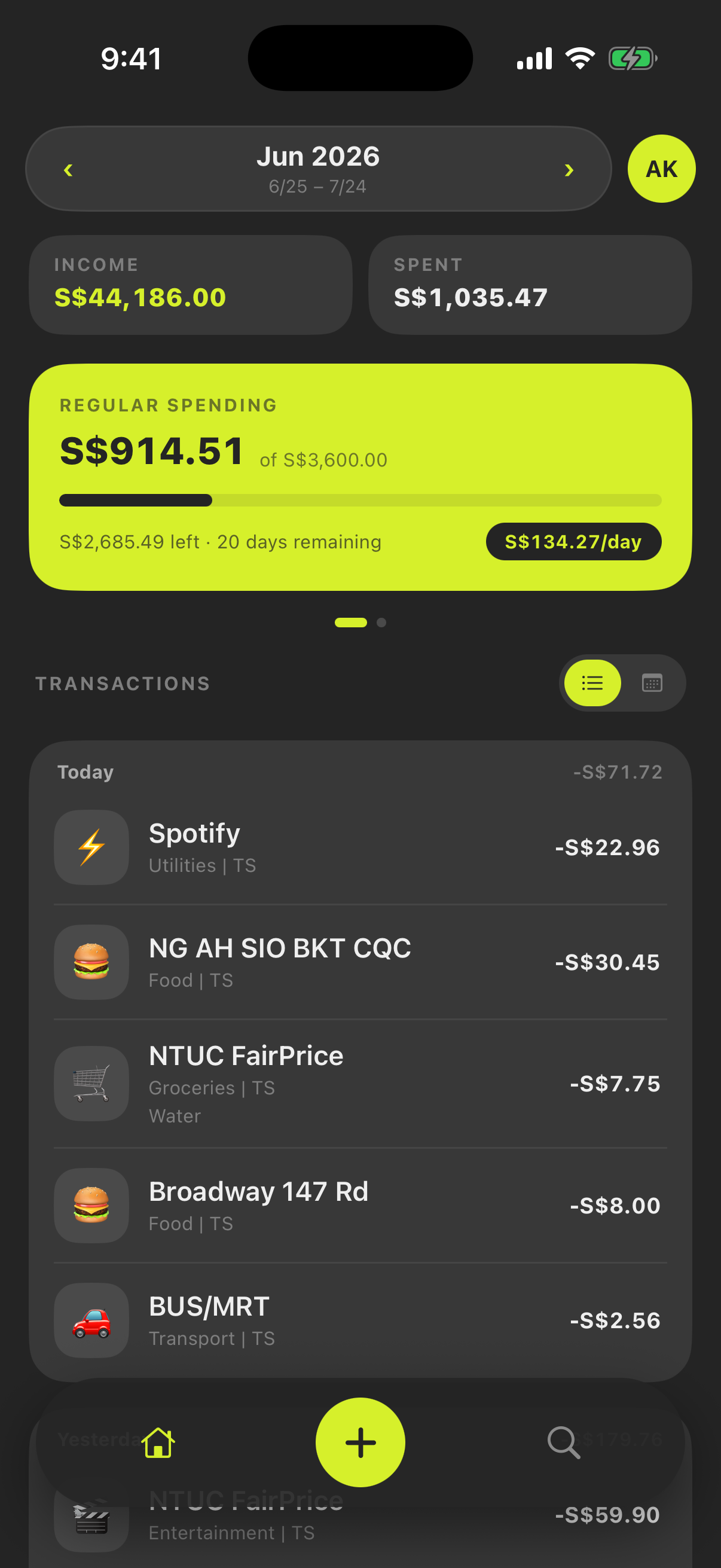
Tap the + button on the dashboard. Two ways in:
- Manual — type the amount, merchant, and category. Takes ten seconds. See the main view manual.
- iOS Shortcut — share a bank notification to the Monivera Shortcut and you’re done. The AI extracts the amount, merchant, and date, picks the category, and logs the transaction straight to your ledger — no confirmation needed. Set it up →
5. Make it automatic
Logging one alert at a time is nice. Never touching your ledger is better. Set up a shortcut automation so your bank alerts flow into Monivera on their own — the five minutes you spend here pays for itself every single day.
Set up email & SMS integration →
6. Optional: invite your household
Budgeting with a partner or housemates? Invite them from Settings and everyone shares one budget, one ledger, and one daily number — synced live on every phone. Membership works via email invites; members can leave (or be removed) at any time and revert to their own personal budget.